
Configure programme sessions
Programme preparation is available to current Coordinators and mosque administrators where the programme pilot is enabled. It prepares programme dates and places. Public family booking requires a published policy and explicit intake approval. Fees and payments remain unavailable. Programme configuration never collects attendee names, phone numbers, identity documents or personal circumstances.
- Open Programmes and choose Add programme. Enter the programme title and save.
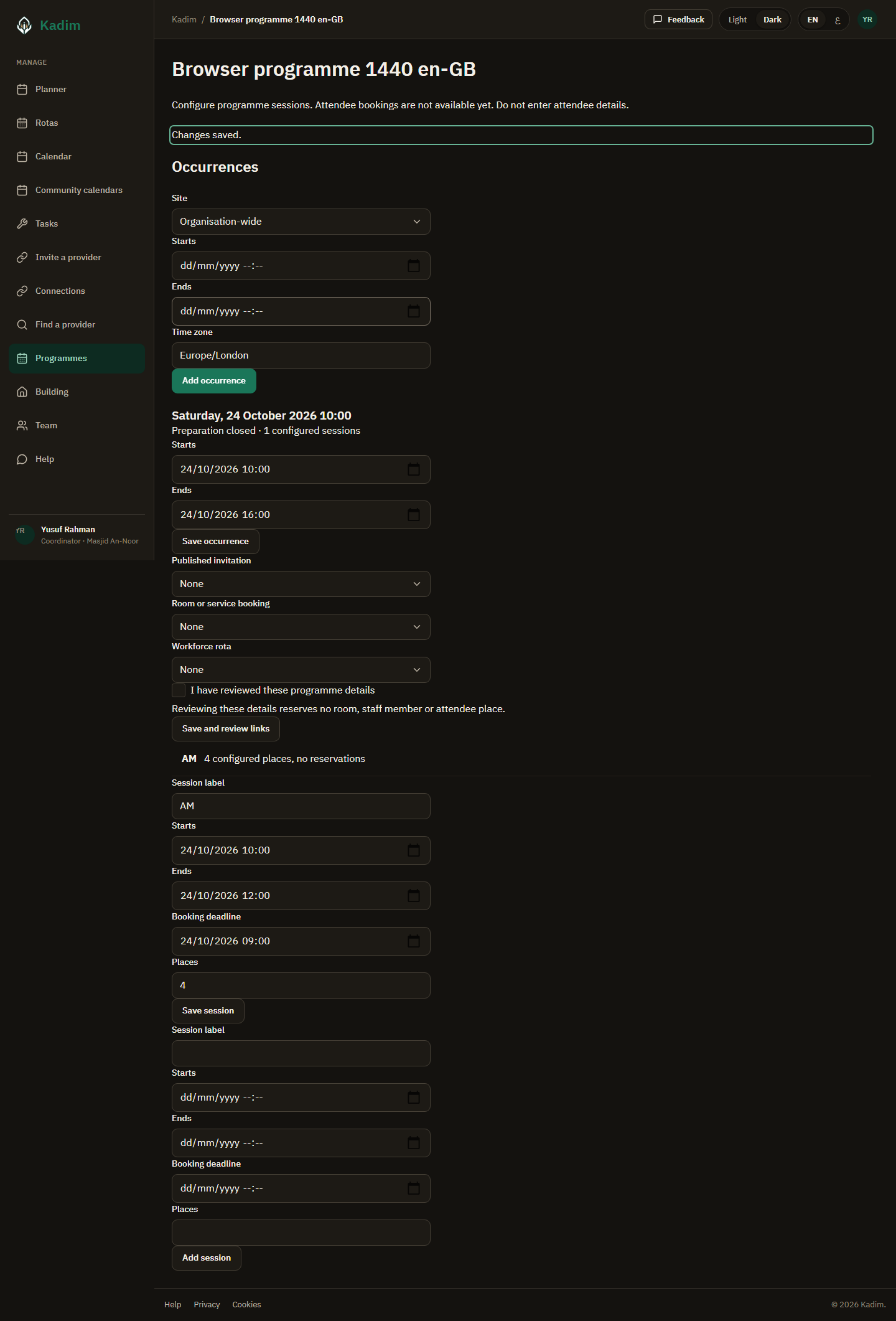
- Open its row. Set an occurrence's confirmed start/end and time zone. Leave unknown operating details unset until the visiting team confirms them.
- Add each session, with its label, confirmed times, booking deadline and number of places. A family of three attendees needs three places.
- Publish the invitation through Community calendars, then explicitly select it here. Optional room/service bookings and workforce rotas remain separate records. Selecting them creates no room reservation, staff assignment or attendee booking.
- Review the links and programme details. Readiness requires a current published invitation with matching times and at least one configured session. Linked resources must be accepted, accessible and cover the occurrence; staffing must be current and cover it.
You can edit programme, occurrence and session details. A stale editor must refresh before saving. Changes close preparation; publishing or relinking never opens bookings automatically. If a publication change needs recovery, preparation stays closed until reviewed. Closed session history is retained. The mosque must use its existing channels to communicate operating changes; this stage sends no new messages.
A private resource or rota is available only to its permitted group. Administrator status never opens another person's private planning item. Removing the admin role or suspending/ archiving the mosque stops administrative actions; a separately held Trustee role retains its existing safeguarding read.
Review the booking data policy
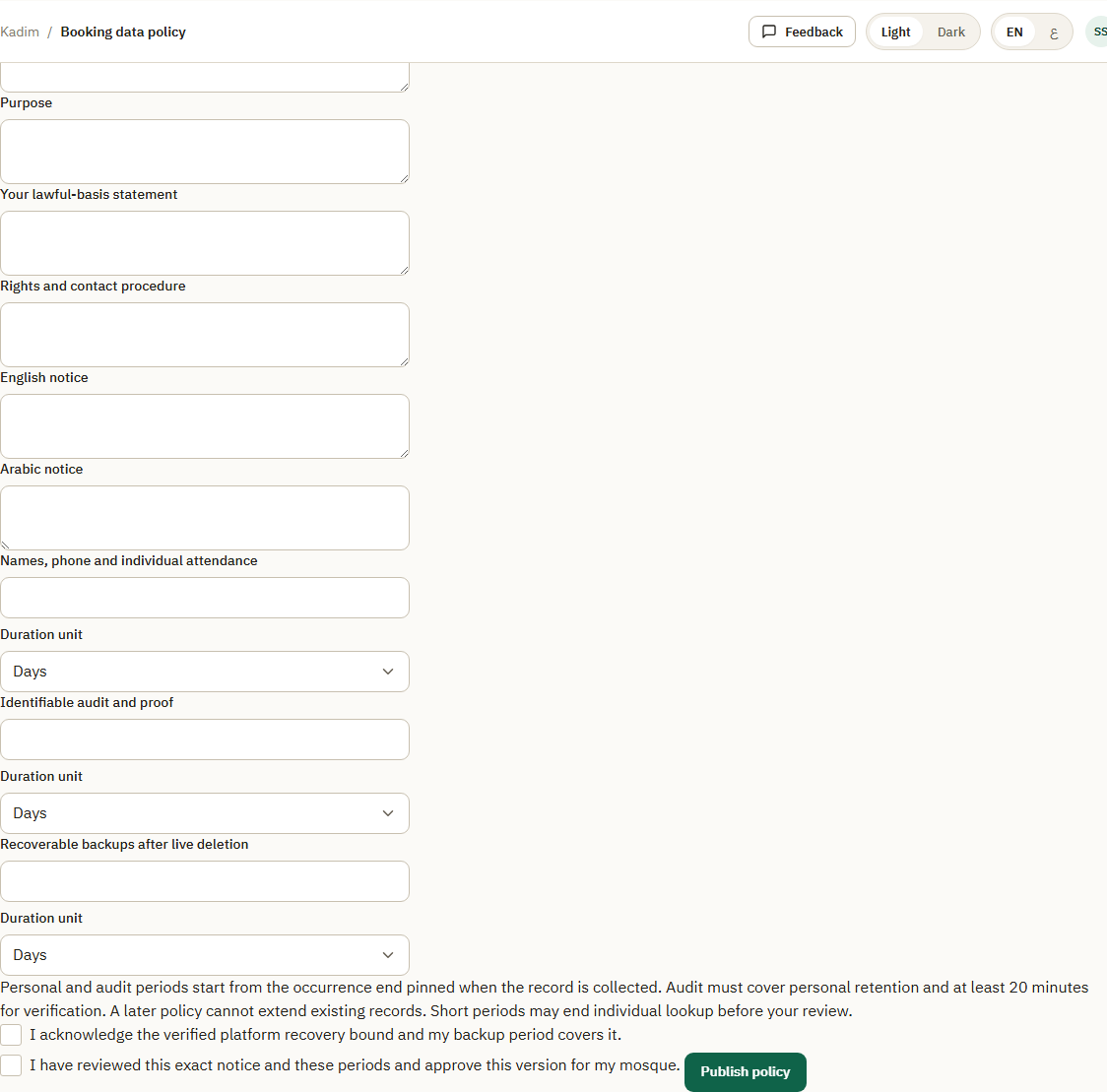
From Programmes, open Booking data policy. A current mosque administrator publishes the policy; Coordinators can read the published version. Trustee status alone grants no policy publication. Provide the controller/contact, purpose, lawful-basis statement, rights procedure and English/Arabic notices. Choose the personal and identifiable-audit live-record periods explicitly; there are no prefilled numerical periods. Review the notice and both periods, acknowledge the managed-backup disclosure and confirm the policy before Publish policy.
Audit retention must cover personal retention and at least 20 minutes for verification. Existing Azure managed backups may retain older information after live expiry until their platform retention ends. A future restore needs manual review before reconnecting; no mosque-specific backup deletion deadline is set here. A stale or refused save requires review and a refreshed page. Publishing does not open bookings or collect attendees in this stage.
Withdraw policy closes new intake without extending or silently cancelling prior commitments. Repeating a completed operation changes nothing; altered or expired replay is refused. Changing a policy never extends an earlier record's pinned deadline.
Review intake for one occurrence
Open the programme, then Review booking intake beside the occurrence. Metadata Ready does not open intake. Review the current policy and each session's local start, end, booking deadline and confirmed places. Confirm these facts and a plan to contact affected households manually, then choose Open intake. A current mosque administrator or Coordinator can make this decision; Trustee status alone cannot.
Missing policy or PII keys, a changed or private public source, unavailable linked resources/staffing, incomplete source recovery, cancellation or passed booking deadlines keep intake closed. Close intake stops new collection without cancelling earlier commitments. Source changes close intake first; successful recovery never reopens it. Refresh and review changed facts, prepare metadata again, then make a new explicit intake decision. Earlier audit deadlines remain pinned even after a later opening or policy change.
When intake is open and all current checks pass, Open contact confirmation gives you the public link to share. Visitors read your notice and confirm their contact phone through the short code flow. A code holds no place and does not enrol a volunteer. Closing intake or changing policy invalidates uncommitted Book proof. A verified contact can then book family places. Current mosque administrators and Coordinators can use Open reception from this intake page.
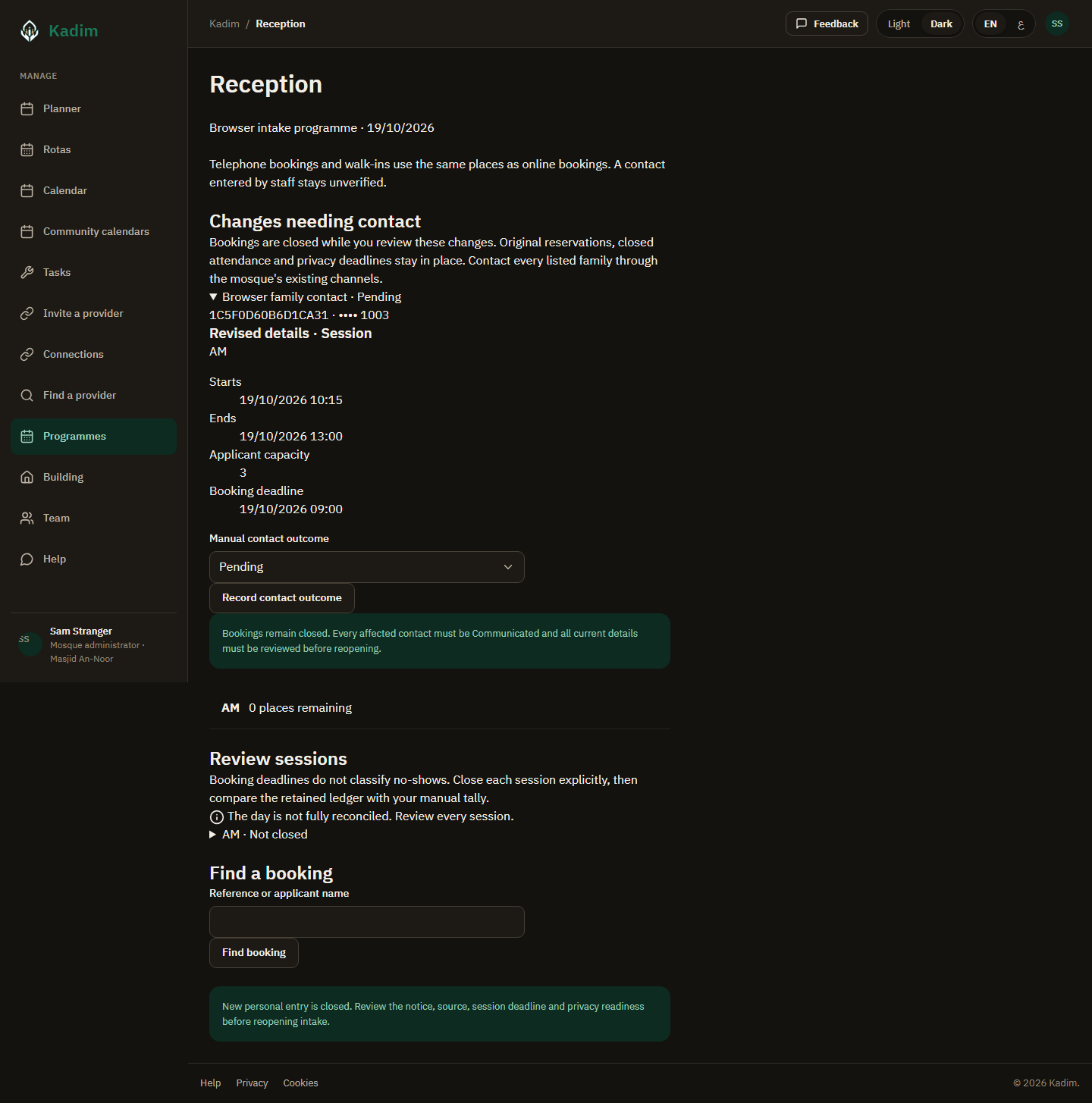
Communicate changed details and reopen
A details or link change closes intake before its source saves. In Reception, review Changes needing contact and each family's revised details. Original reservations, closed attendance and privacy deadlines remain pinned. If Kadim cannot bind the complete affected set, Existing bookings need review refuses the source save; refresh and resolve the missing operating or privacy facts first.
- Contact each listed family through the mosque's existing channels. Kadim sends no change message. Choose Pending, Communicated or Unreachable, then Record contact outcome.
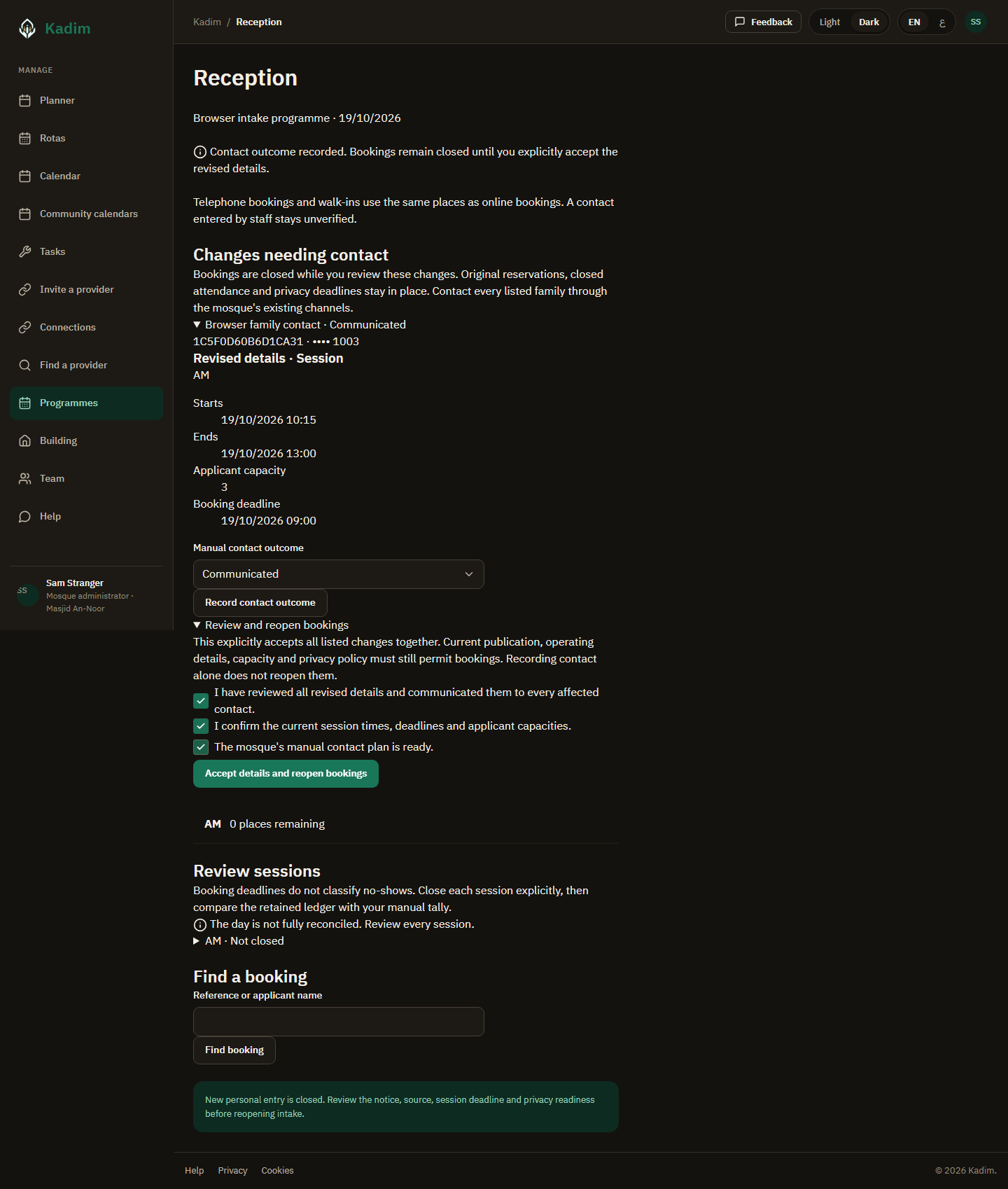
- Leave Pending or Unreachable until you have actually communicated the revised details. Recording an outcome does not reopen bookings. A further source change requires fresh contact outcomes against its own review.
- Once every affected contact is Communicated, open Review and reopen bookings. Review all changes together and confirm the current sessions and manual contact plan.
- Choose Accept details and reopen bookings. Current public invitation, accessible resources/staffing, capacity, policy and privacy readiness must still permit intake. Changed or expired facts refuse the whole decision. Refresh and review before trying again.
Repeating the same saved decision does not create another contact fact or extend a privacy deadline. Reopening does not silently move a family or rewrite a closed session.
Enter a telephone family or walk-in
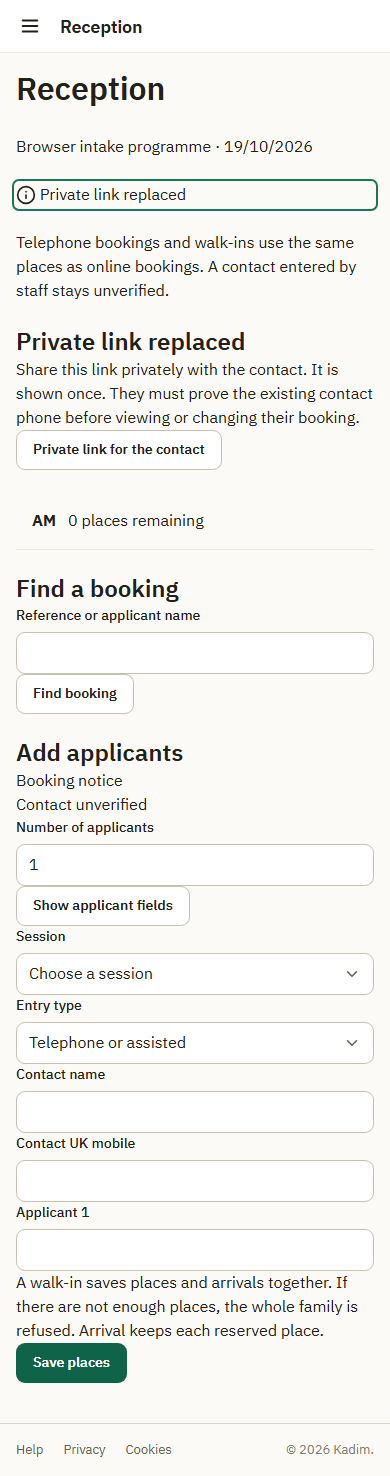
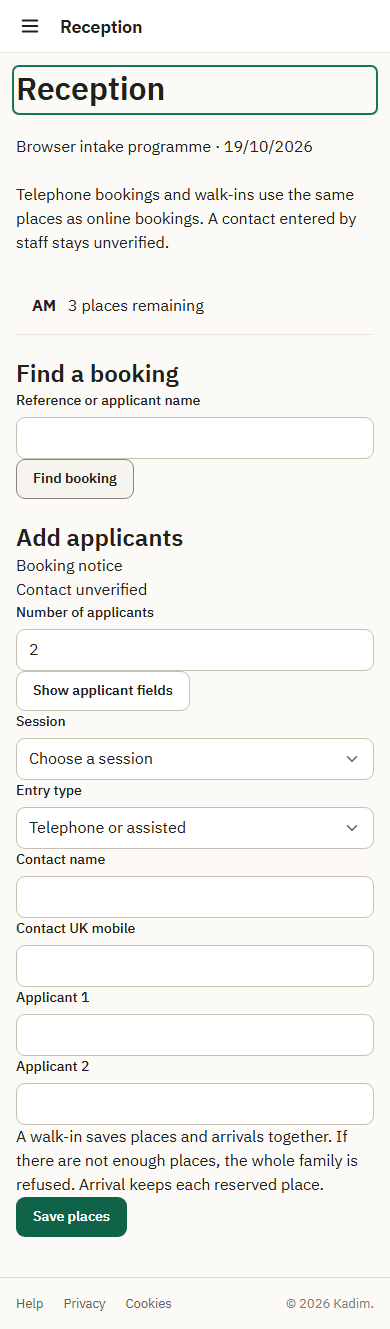
- From the occurrence's intake page, choose Open reception. Confirm the programme, date and session before entering private details.
- Set the number of applicants and choose Show applicant fields. Select the session and Telephone or assisted or Walk-in with arrival.
- Enter one contact name, their UK mobile and a display name for each applicant. Choose Save places. The family saves together or no place saves. A walk-in records each arrival in the same save; it still occupies its reserved places.
- Read back the reference, session and arrival instructions. Staff entry leaves the contact unverified. The private link requires a fresh code for the existing contact phone.
- Use Find a booking with its reference or an applicant name. Contacts are masked; results stay within this occurrence. Pages contain at most 20 bookings. Refine similar names or choose the previous/next page. Search details never go in the URL.
Full, closed, stale or expired entry saves no family. Refresh the page and review intake, privacy readiness and session facts. Policy withdrawal preserves eligible existing lookup without reopening new entry. Trustee status or a booking reference grants no reception access. Use Review sessions below to close and reconcile the retained ledger.
Record booked arrivals
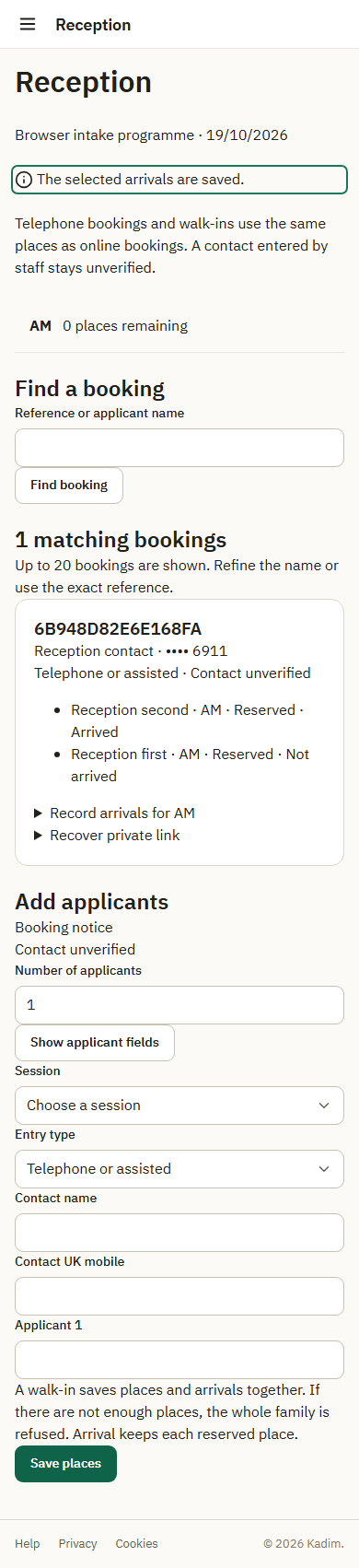
Find the correct booking, then open Record arrivals for its booked session. Select only the applicants who have arrived and choose Save arrivals. The list refreshes with those arrivals; other applicants stay expected. Arrival keeps every reserved place and cannot create capacity for a walk-in. Repeating the same save counts once.
A booking deadline stops new entry, not arrival for an existing place. Late booked applicants can arrive before explicit session closure. Closed, cancelled, changed or expired selections refuse together; refresh and review the booking. An unresolved source change must be reviewed before normal arrivals resume. Policy withdrawal or completed invitation withdrawal alone does not prevent eligible existing attendance within its original privacy period.
Correct an attendance mistake
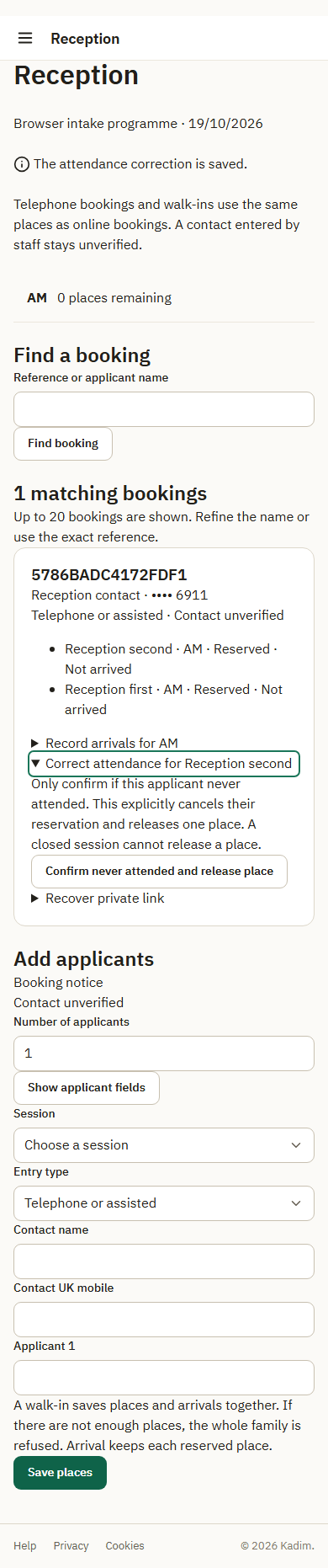
Find the correct booking and open Correct attendance for the applicant. Review the confirmation and choose Reverse mistaken arrival only when the arrival was entered in error. The original arrival remains in the audit history. The applicant is now shown as not arrived, but their place stays reserved. If they later arrive while the session is open, use Record arrivals again. The new arrival supersedes the reversal without removing history.
If they never attended, open their correction again and choose Confirm never attended and release place. This separate decision cancels exactly their reservation and releases one place. You cannot release a place after the session is closed. Ordinary cancellation cannot release a previously arrived place merely because its arrival was reversed.
A closed session allows Record late arrival for an existing reserved applicant who is not currently arrived. This appends a correction and preserves the original history and reservation. Current arrivals and no-shows update immediately; review the manual tally again. Correction refuses stale selections, unresolved source recovery or expired privacy access; find the booking again and review the current facts. No correction extends retention.
Close and reconcile a session
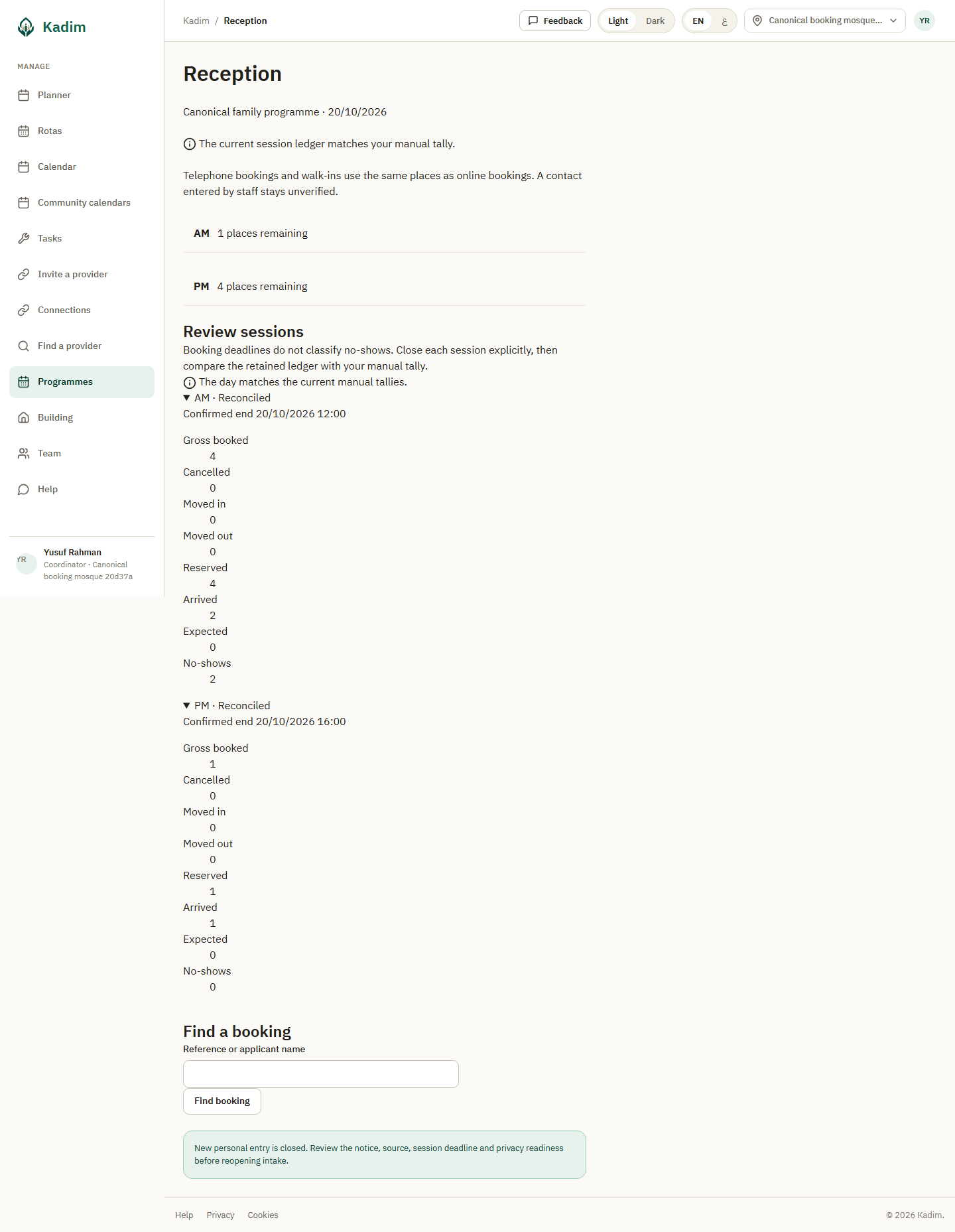
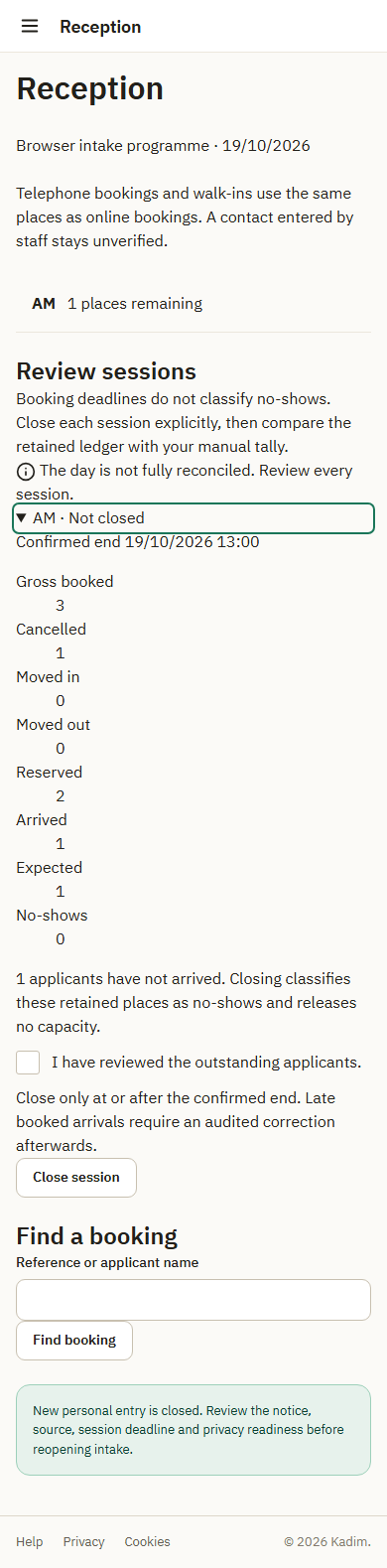
Open Review sessions and the correct session. Review gross booked, cancellations, moves, reserved places, current arrivals and the outstanding count. The booking deadline alone classifies nobody as a no-show. At or after the confirmed end, confirm that you have reviewed the outstanding applicants and choose Close session. Their retained places now count as no-shows; closure releases no capacity. A repeated save closes once.
Enter every count from your manual tally and choose Reconcile session. Differences, incomplete retained data or pending source recovery refuse reconciliation. Each session must be closed and match its current tally before the day is reconciled. A later correction or source/version change requires review again. Expired individual access cannot be recovered by closing or reconciling, and these controls never extend retention. After personal erasure, retained session counts remain reviewable by current authorised staff. Close and reconcile them explicitly against your manual tally; erasure itself neither closes a session nor classifies anyone as a no-show. Individual lookup and correction are no longer available.
Cancelling the invitation preserves closed sessions and their reservations, arrivals and no-shows. Only eligible never-arrived places in unclosed sessions cancel. An arrival that was reversed still needs the separate Confirm never attended and release place decision. Communicate operating changes through the mosque's existing process.

Review early erasure as the mosque administrator
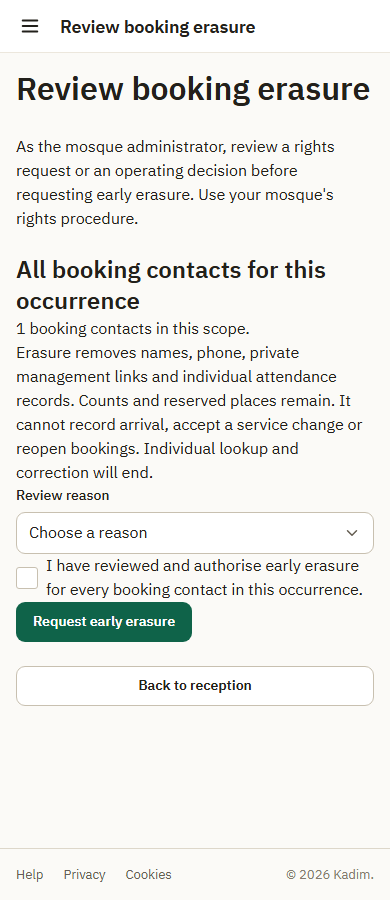
Follow your mosque's rights procedure before requesting early erasure. In reception, choose Review occurrence erasure for every booking contact in this occurrence. To review one booking instead, find it and choose Review this booking's erasure. Coordinator or Trustee status alone cannot authorise these requests.
Review the scope and contact count. Select Rights request reviewed or Operating decision reviewed, explicitly confirm the scope and choose Request early erasure. No documents, personal circumstances, replacement phone or free-text reason are collected. If the current scope or authority refuses, review the facts and retry the same request.
The recorded-request message confirms acknowledgement for cleanup, not completed deletion. The separate cleanup process removes contact/applicant details, private management links and individual attendance linkage under the original deadlines. It preserves counts and reserved places, never invents an arrival, accepts a service change or reopens bookings. Once personal details are erased, use the retained session tally rather than individual lookup.
Live cleanup does not immediately remove older information from Azure managed backups. A future restore is reviewed manually before the restored server reconnects.
Recover a lost private link
Find the correct booking by reference or applicant name. Open Recover private link and review the warning, then choose Replace private link. Share the once-shown link privately with the contact using the mosque's existing process. Older links and contact sessions stop working. The contact must still prove the existing phone with a fresh code; staff recovery does not change the phone or mark it verified. If the phone is lost, use the mosque's existing process. Phone replacement is unavailable.
Private-link replacement can continue after policy withdrawal while the booking's original personal and audit periods still permit it. It never reopens intake or extends retention.