

Your first rota as a coordinator
Your mosque has just joined Kadim and your board is empty. This walkthrough takes you from your first sign-in to a filled rota and a thank-you sent, so you can see the whole loop before you learn any of the detail.
Step 1: Sign in
Go to kadim.co.uk and tap Sign in. Use the email your mosque was set up with, through Continue with Google or Continue with Microsoft, or create an account with that address. A fresh mosque lands on Call for volunteers with an honest empty state and no dead buttons: "Tap New rota to make your first call."
Step 2: Call for the volunteers you need
You don't have to build a duty roster to get started. Think in headcounts: "we need 20 for Jummah."
Your rotas live here as a list of cards, with a floating + button in the corner for making a new one.
- Tap the + button (New rota). The Call for volunteers sheet opens over the list.
- Enter what the occasion is (for example Jummah).
- Pick which day.
- Enter how many volunteers you need (for example
20). - Tap Publish and get the link.
That's a complete, published rota: one pooled call for the number you asked for. No duties to assign yet, and no accounts for anyone to create.
Step 3: Share the link
The confirmation hands you the share link. You have three ways to send it, and only one of them spends on texts. From the rota board you reach the same three by tapping ⋯ (Rota actions).
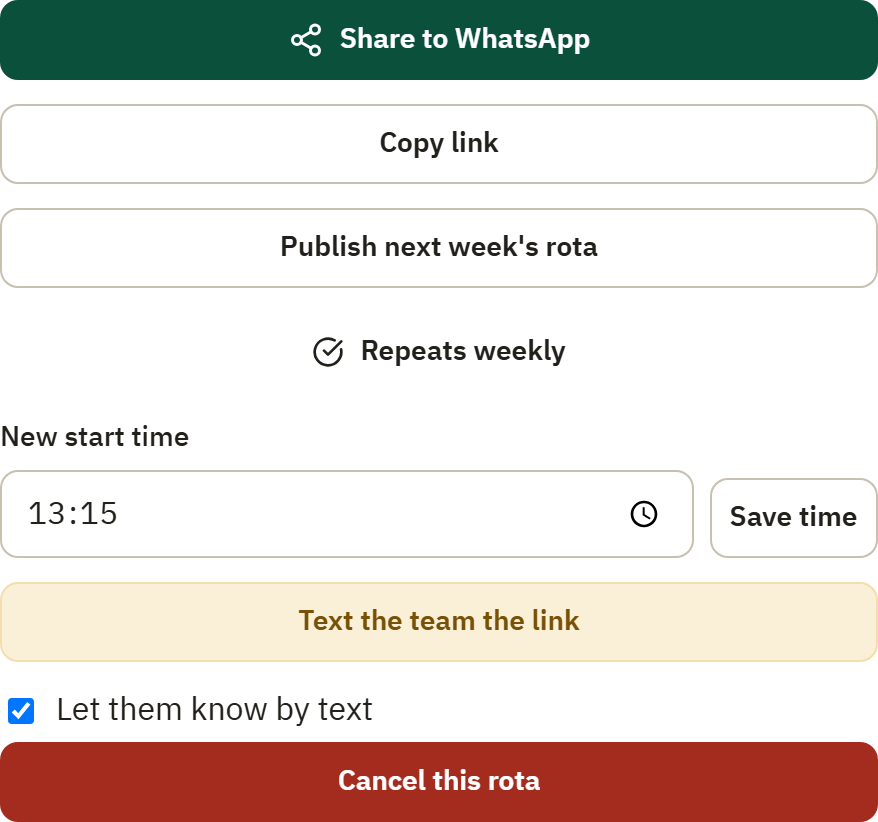
- Share to WhatsApp opens your group with the message and link ready. This texts nobody.
- Copy link puts the link on your clipboard to paste anywhere.
- Text the team the link is the one that sends SMS, and it asks you to confirm first.
For your first rota, Share to WhatsApp into the mosque group is the natural choice.
Step 4: Watch it fill
Volunteers tap the link and claim a slot with a code by text, no account needed. The board counts it live in the title strip at the top: N of 20 filled. You don't chase anyone; the link does the work.
Step 5: Thank the team
After the rota's date has passed, open it, tap ⋯ (Rota actions) and tap Thank the team. Everyone who served gets one warm text. It sends once, and tells you honestly how many people it reached.
Where to go next
- Call for volunteers covers changing a rota and the pooled-call model in full.
- Run the duty board is for the night before, when you decide who stands where.
- Make it repeat turns a weekly rota into a standing schedule that publishes itself.
- How standing schedules work explains the horizon, prayer versus activity, and your daily digest.